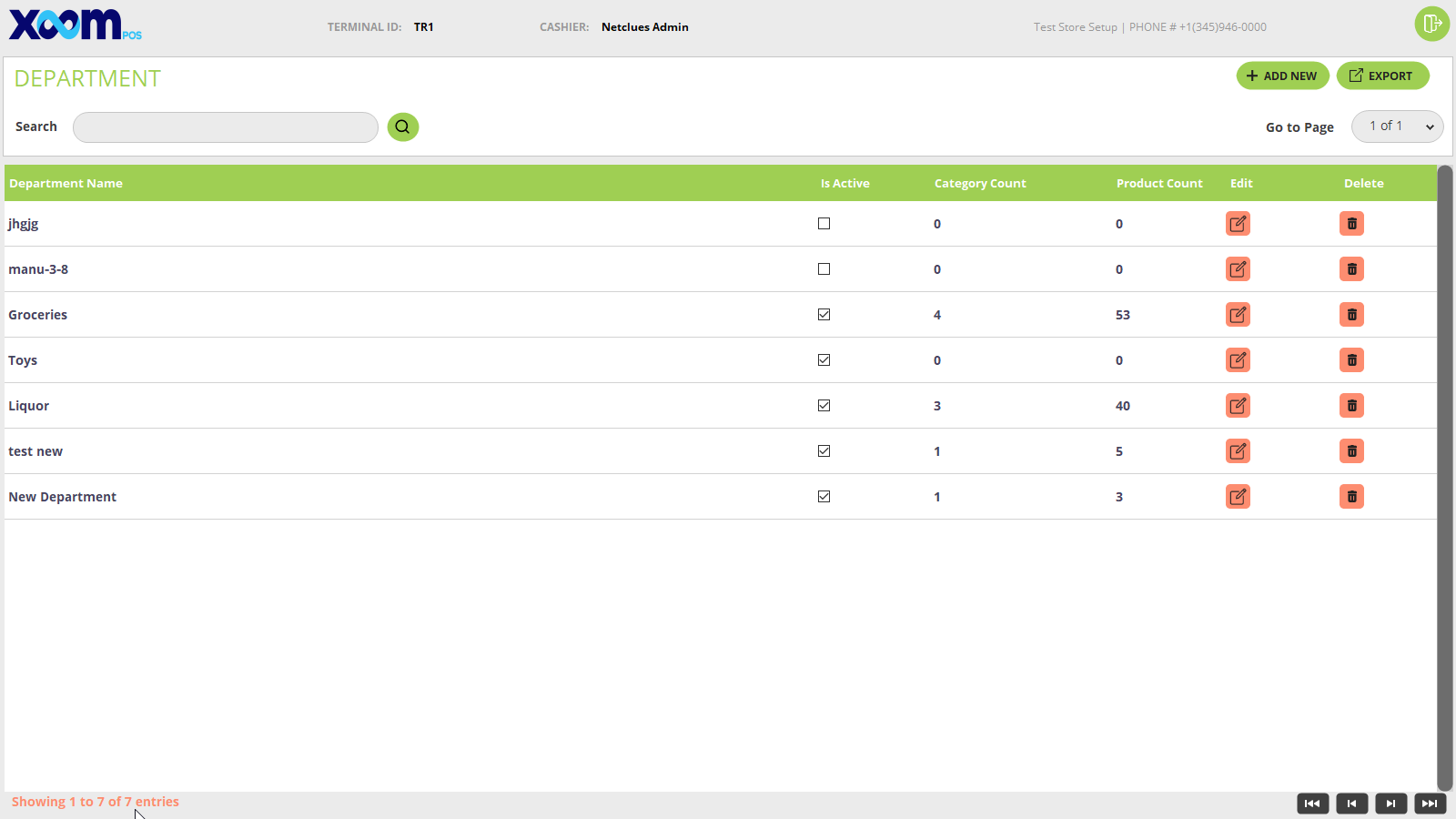
- You will be able to see the list of the departments in tabular format and column names like deportment name, is active, category count(if category is added then count shows else 0), product count(if category added to that department have product then count show else 0).
- You can search the department by department name.
- By clicking on the icon you will able to edit the department name.
- By clicking on the icon the manufacturer goes to soft delete(only deactivate).
- If you want to export all the departments then click on the ‘Export’ button and all departments will be exported.
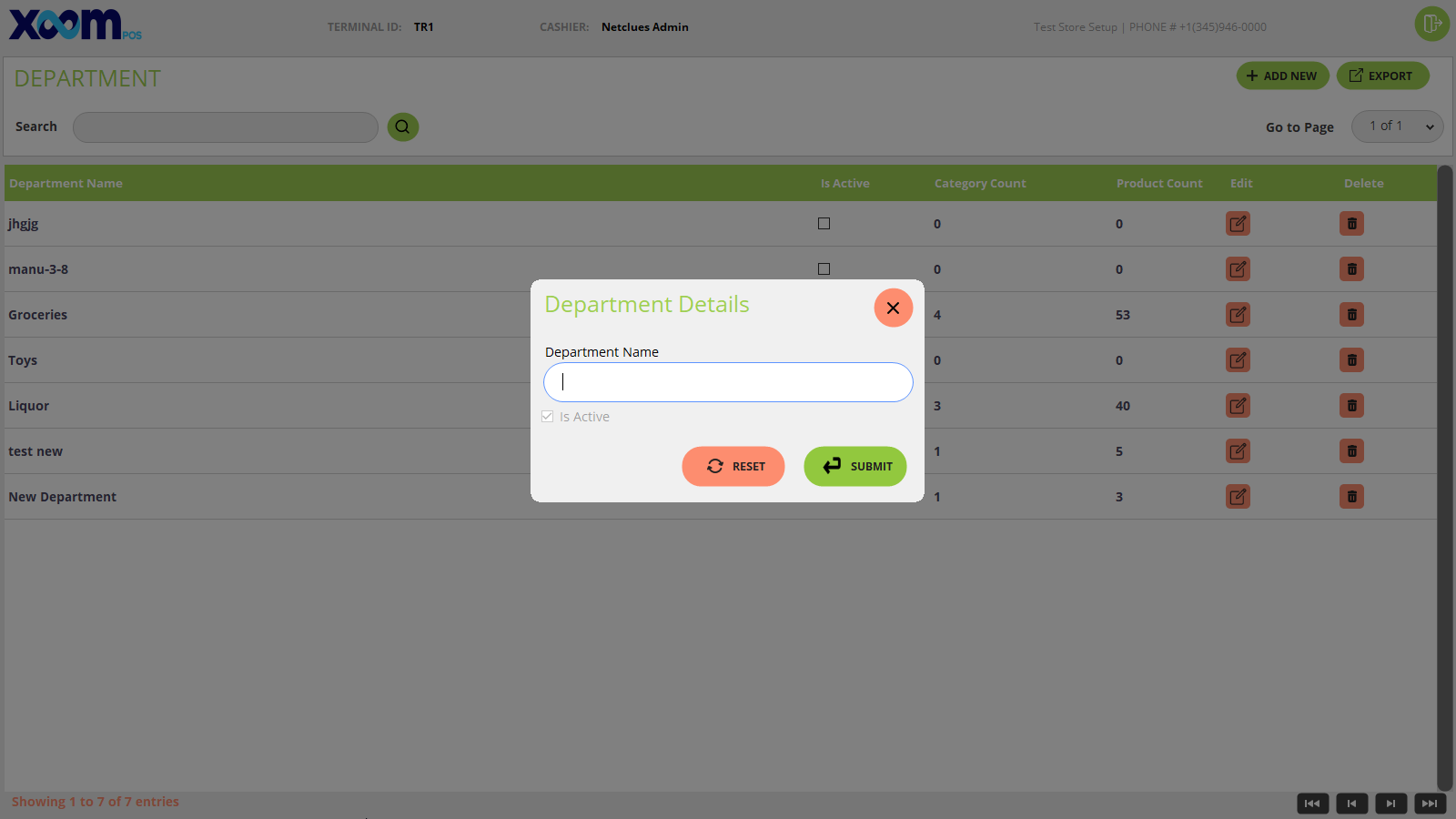
- If you want to add a new department then by clicking on the ‘Add New’ button department popup for adding the department will be displayed. Below is the screenshot for your reference: