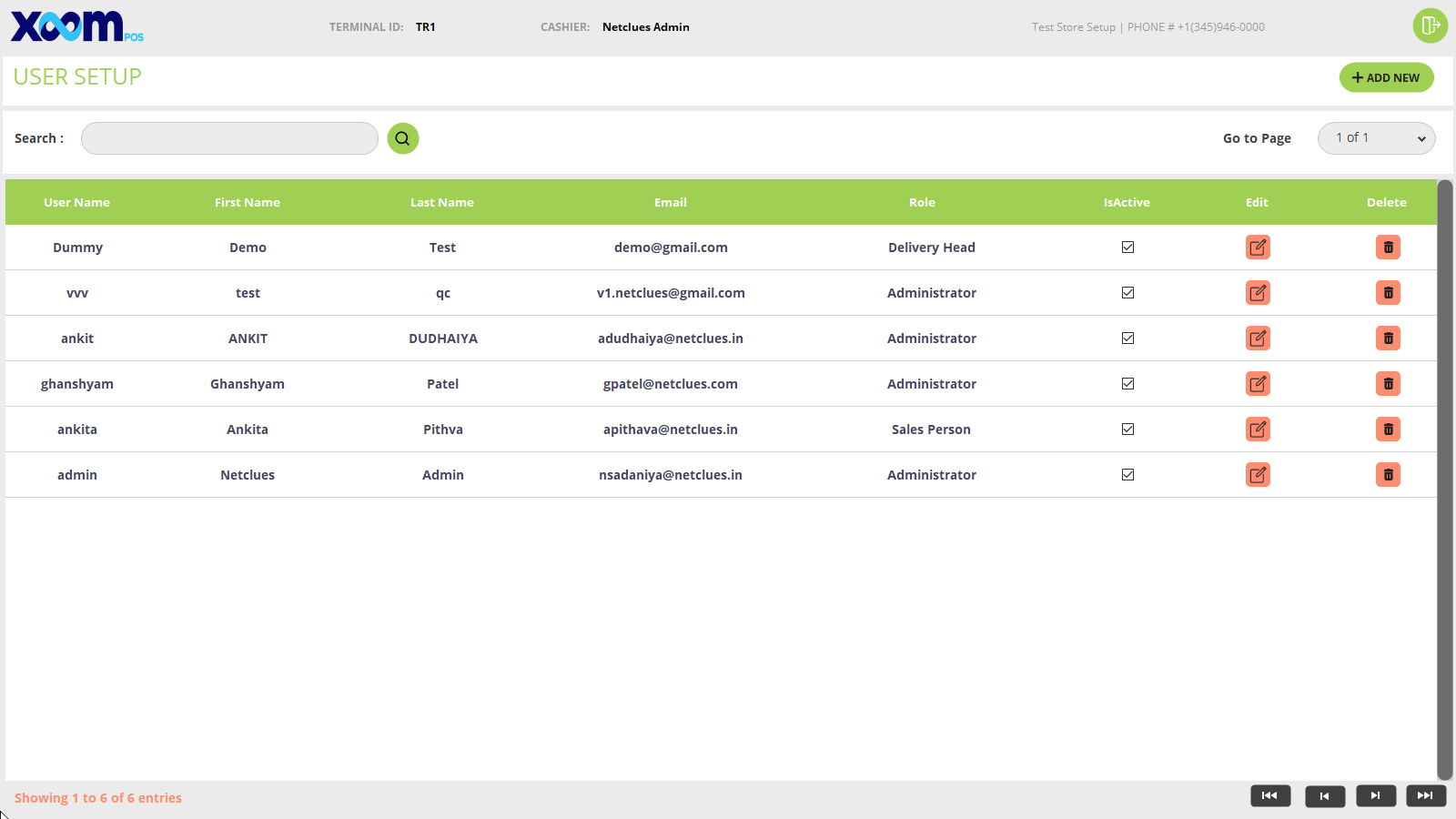
The user master module will display a list of all users in the grid who have registered for Shopright online and in-store.
Click on the User Master module and you will be redirected to the User Master screen. Please refer to the below screenshot:
You can use search the user by user name, first name, last name, email, and role.
You can deactivate the user by clicking on the Delete button and by unselecting the IsActive checkbox.
The details of a user are shown in tabular format with column names like user name, first name, last name, email, role, and isActive.
You can edit the user details by clicking on the icon.
When you click on the edit icon you will redirected to user details where all information related to the user will be shown.
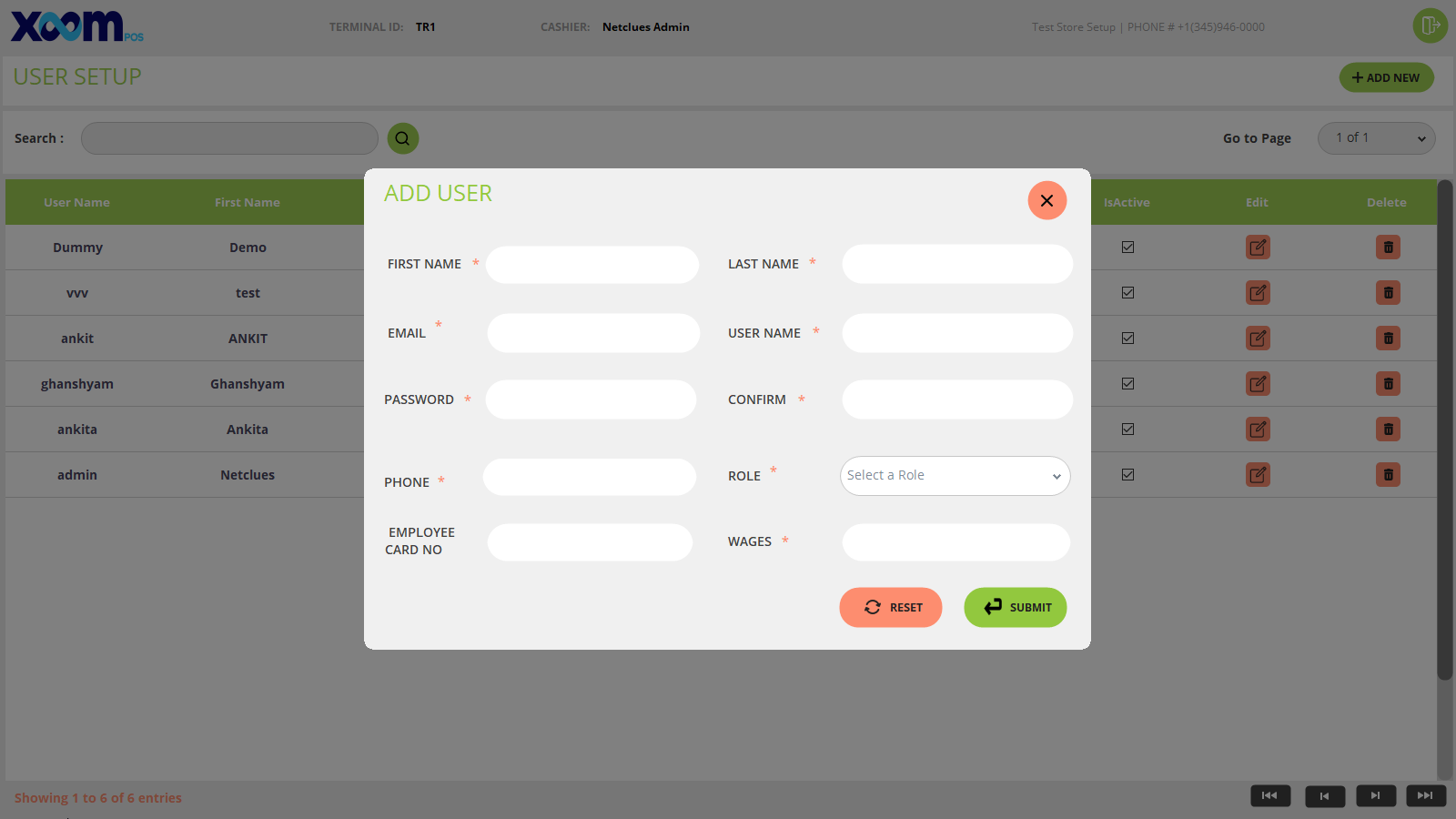
If you want to add a new user then click on the ‘Add New’ button and the new user screen will open. Below is the screenshot for your reference:
On the add user screen enter all required details like first name, last name, email, user name, password, confirm password, phone, select the role (administrator or salesperson), Employee card no., and wages.
After clicking on the ‘Submit’ button the user is added successfully and can login to the POS.
If you click on the ‘Reset’ button then all fields are reset.