

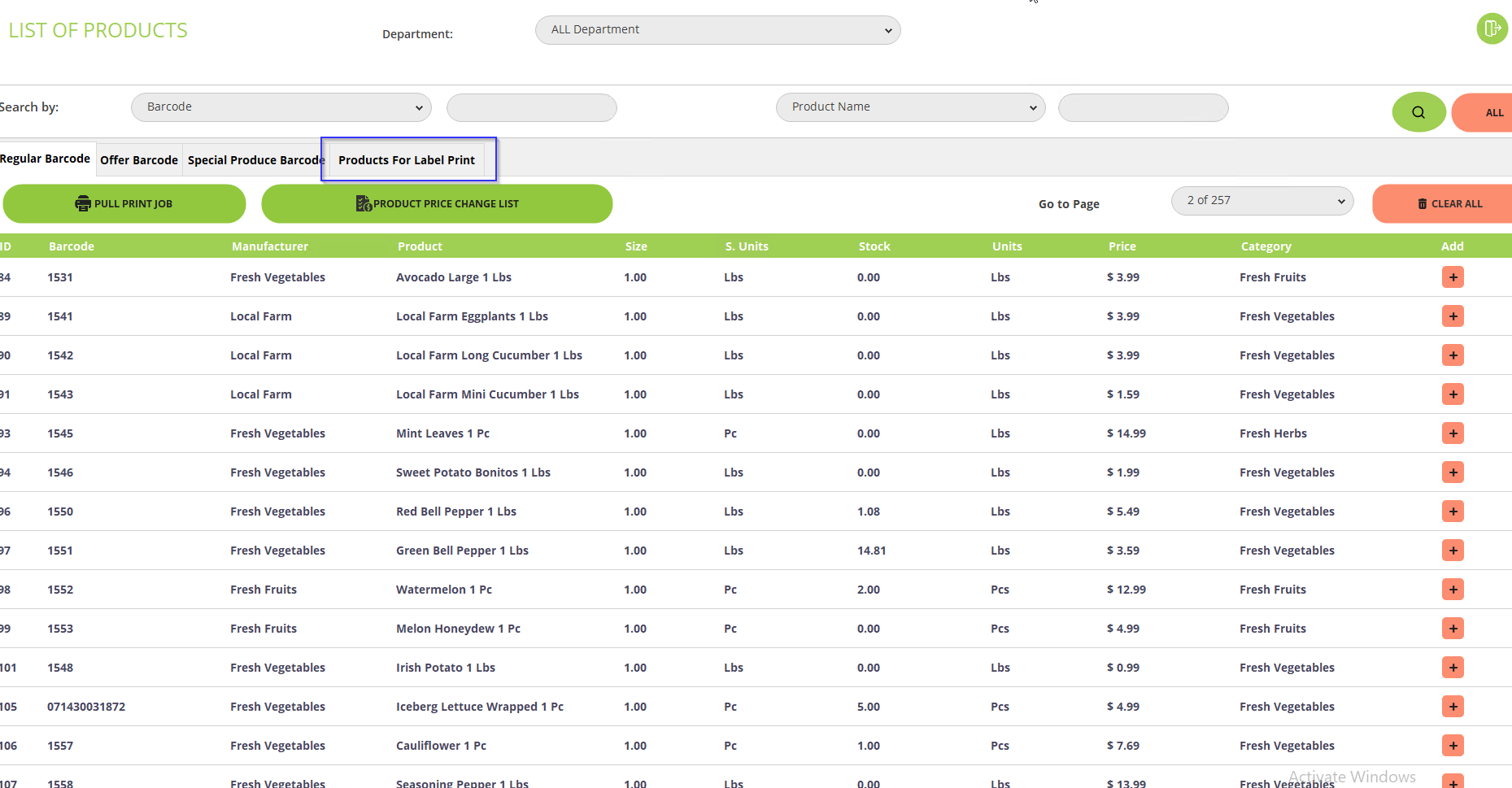
- Click on the
 icon to add products to the Products for Label Print option.
 - If you want to add all products for the Label Print then click on ALL and all product will get added to list of label print.
- If you want to clear all the selected products then click on CLEAR ALL
- If you want to remove the products from label print click on
 from the Products for Label Print to remove particular product.
 - If you want to remove all products from the Products for Label Print then click on Delete
- To Print the label for the added products, click on Labels from the Products for Label Print page where you have to mentioned the details like No. of copies per product, No. of copies on stock Quantity, Is regular and Offer Barcode Same and then click on submit and labels will be printed accordingly.