After entering login credentials and selecting Login To Sales from the Login screen, you will be redirected to the POS sales screen.
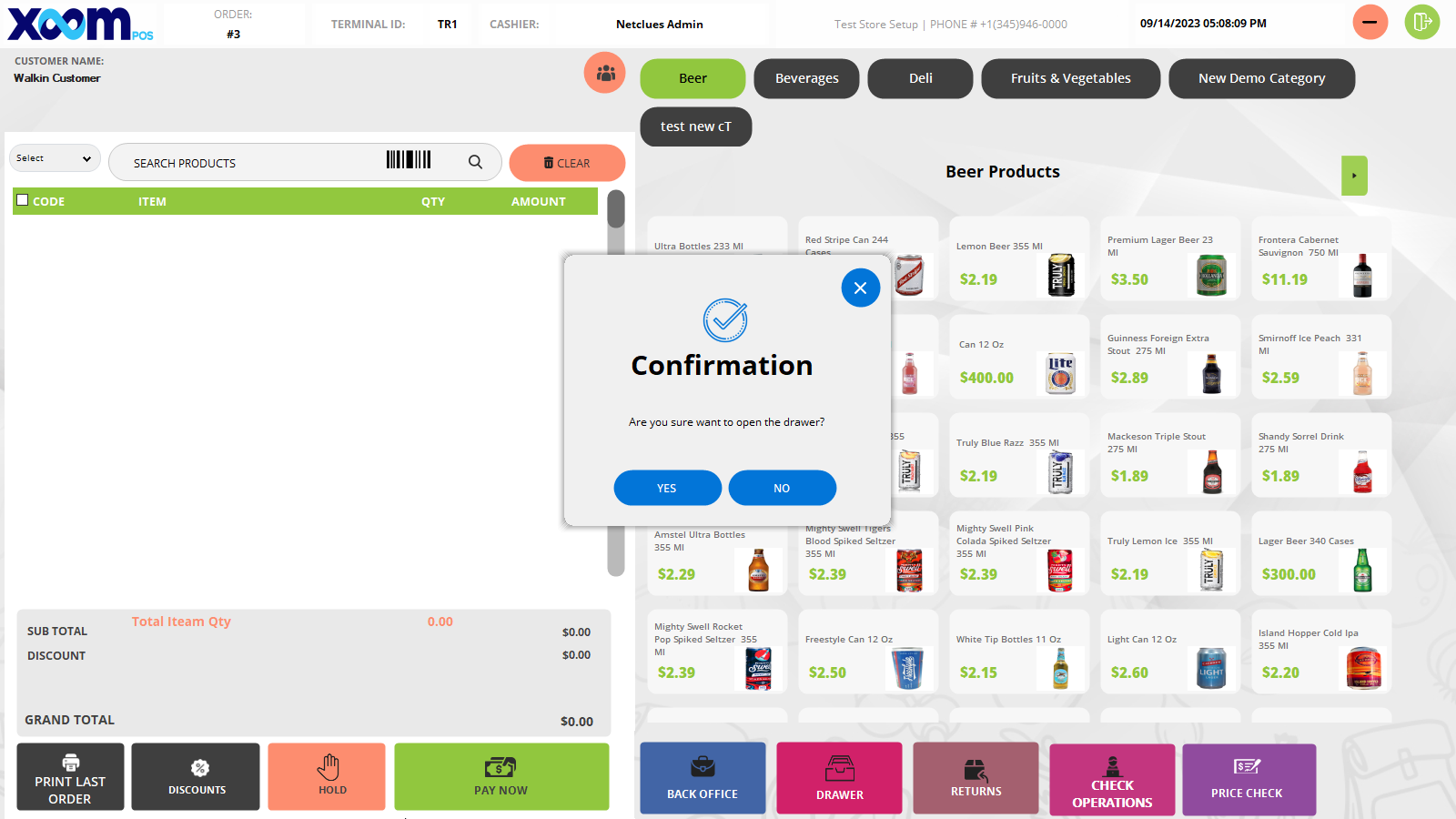
After logging in, the POS sales screen will be opened, and a popup will appear stating that if you want to start a drawer. if you choose Yes, you will be redirected to the Drawer details screen. if you choose No, you will be logged out of Shopright POS.
Please refer to the below screenshot how the popup will be shown when you login to Shopright POS:
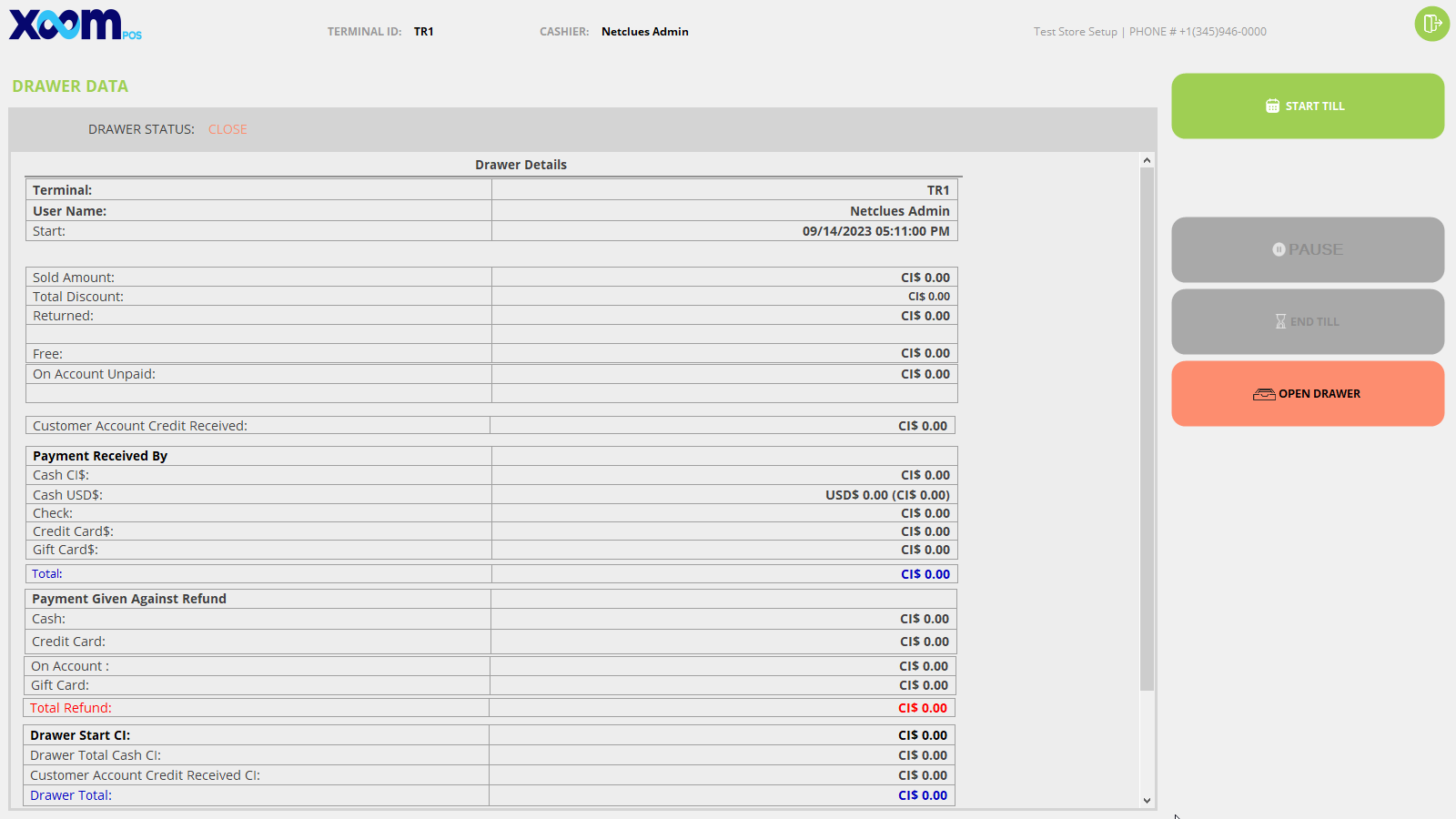
After selecting YES, the drawer details screen will be opened. Please refer to the below screenshot:
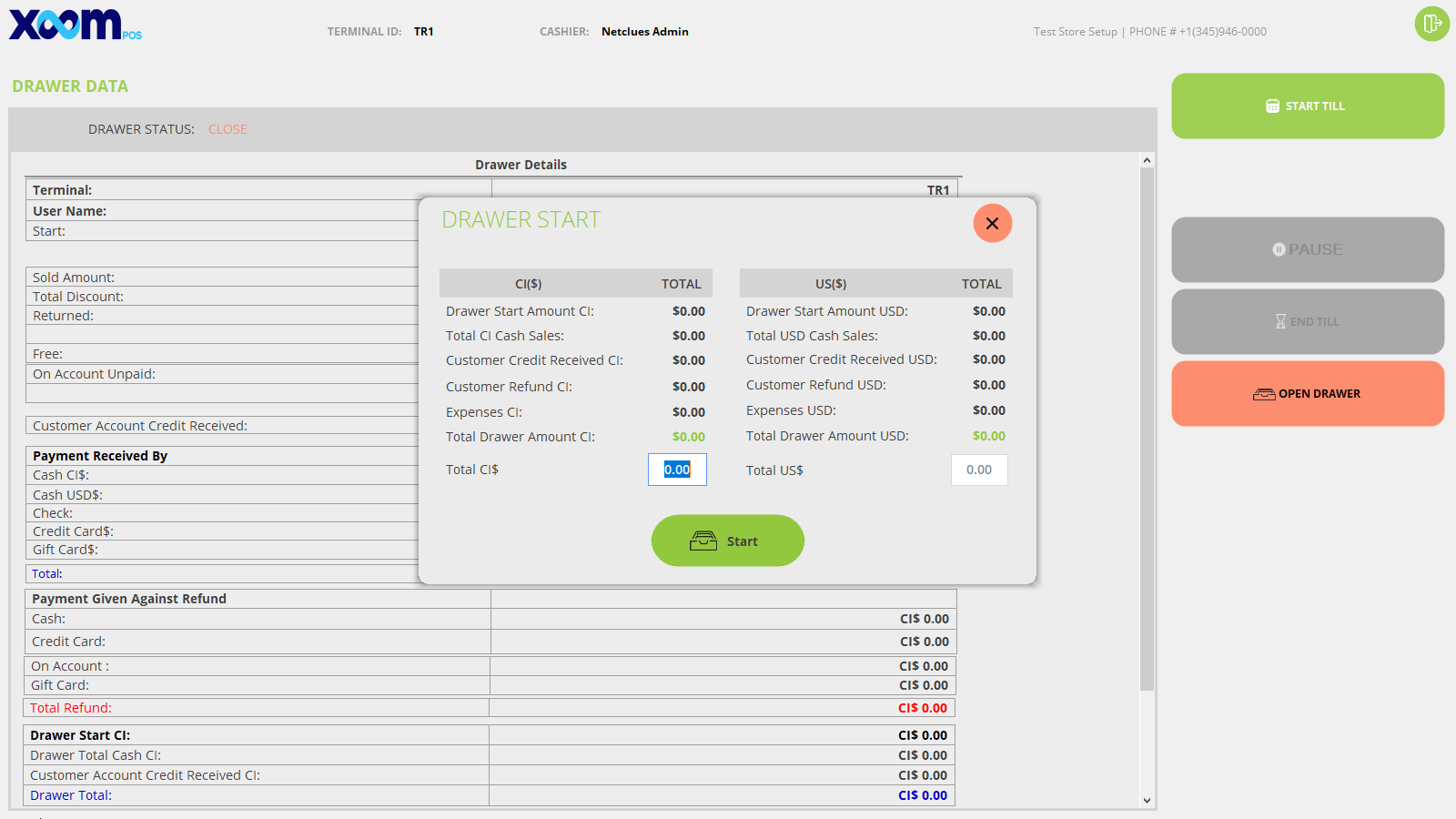
Now, to start a new Drawer click on Start Till and a popup will be opened. Please refer to the below screenshot to see how the popup will display:
By default, the Drawer Status is CLOSED.
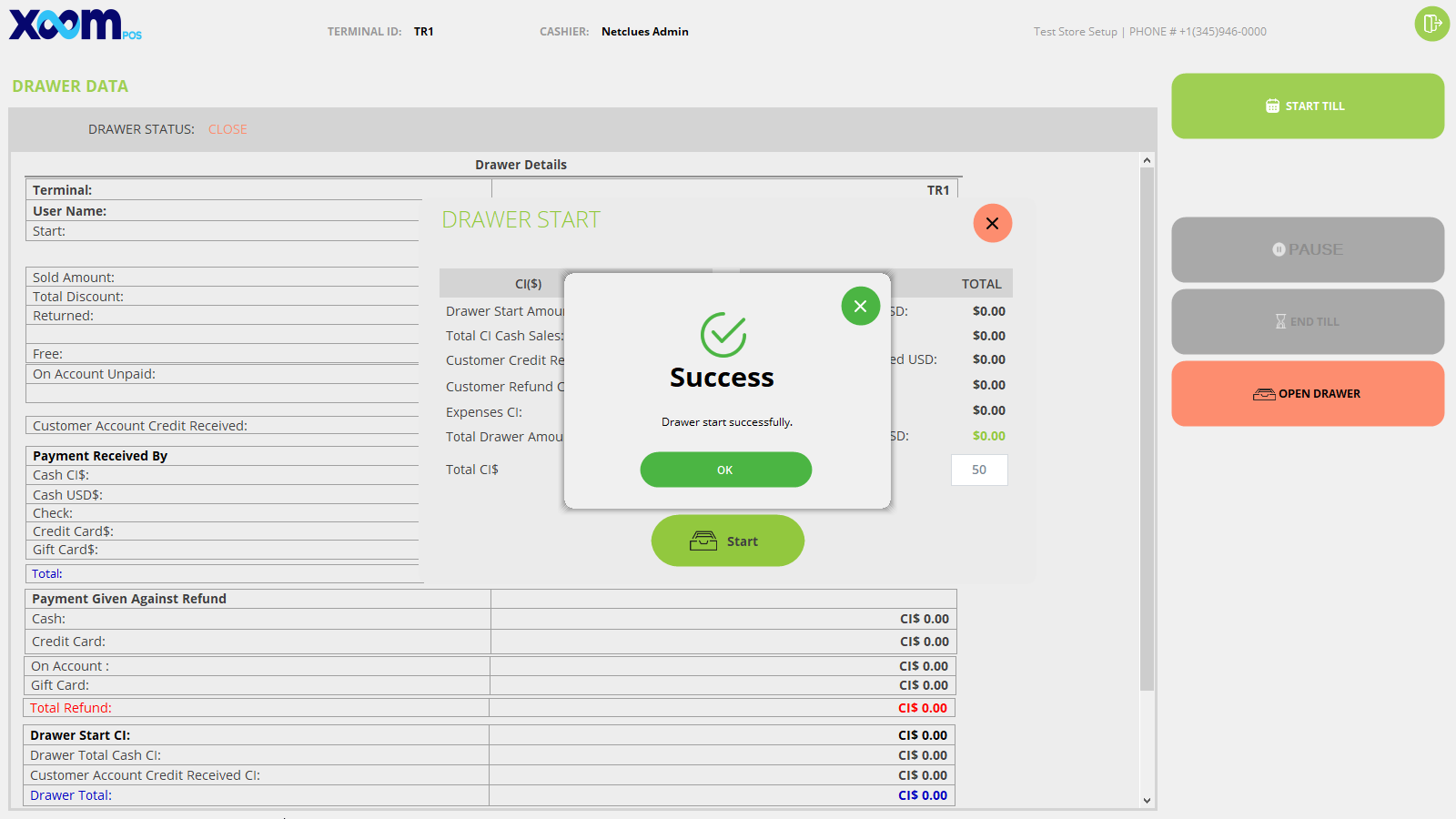
Click on Start till and a pop-up will open where you enter the amount and click on Start now the Drawer will start and the Drawer status will be changed to OPEN and a Drawer start success popup will show. Please refer to the below screenshot to see the success popup of the start drawer:
You can enter the drawer start amount in CI and US dollars.
When you click on start, the added amount will be shown in the Drawer start section in Drawer details please refer to the below screenshot where the added amount will be shown in Drawer details:
The Drawer details include all details of the drawers like terminal, User name, start time of the drawer, sold amount, total discounts, returned, free, On account paid, customer account credit received, Payment received by, payment given against refund, Drawer start amount( in CI and USD), Total customer, average sell per customer and many more.
After entering the Drawer you will be redirected to the POS Screen where all the details related to products and orders will be shown.
To manage the drawer different options are available like
Start Till to start a new drawer,
Pause to pause the drawer and you can resume the drawer whenever you want,
Closing to close the drawer,
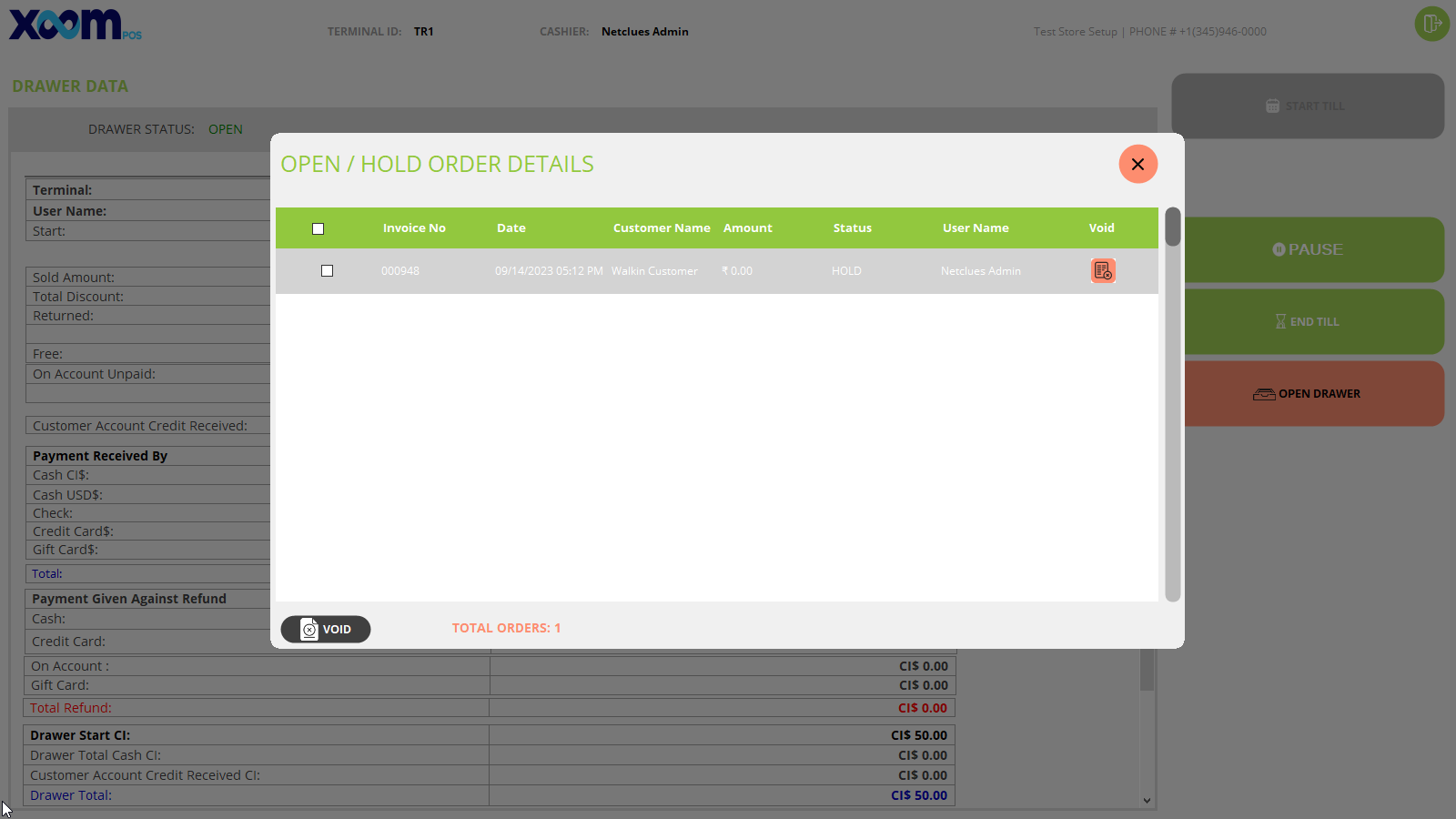
End Till in this you need to end your drawer then only another one can use that terminal. To end the drawer you need to void all the open and hold orders else the drawer should not be closed.
To void all the open and hold orders, first you need to select all orders and then click on the ‘Void’ button. For your reference, below is the screenshot:
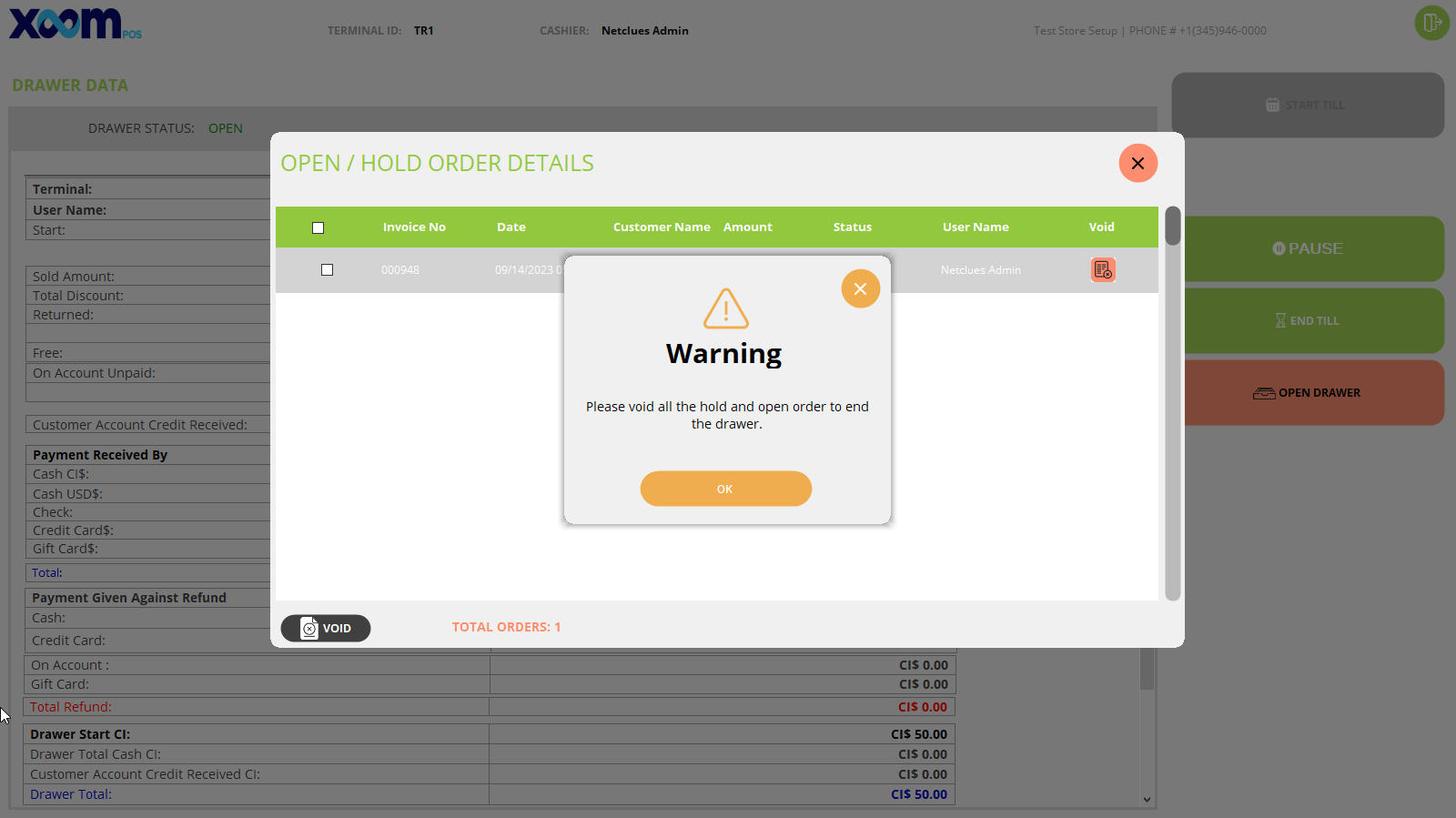
If you directly click on the ‘Void’ button without selecting the open and hold orders then a warning shows. Below is the screenshot for your reference:
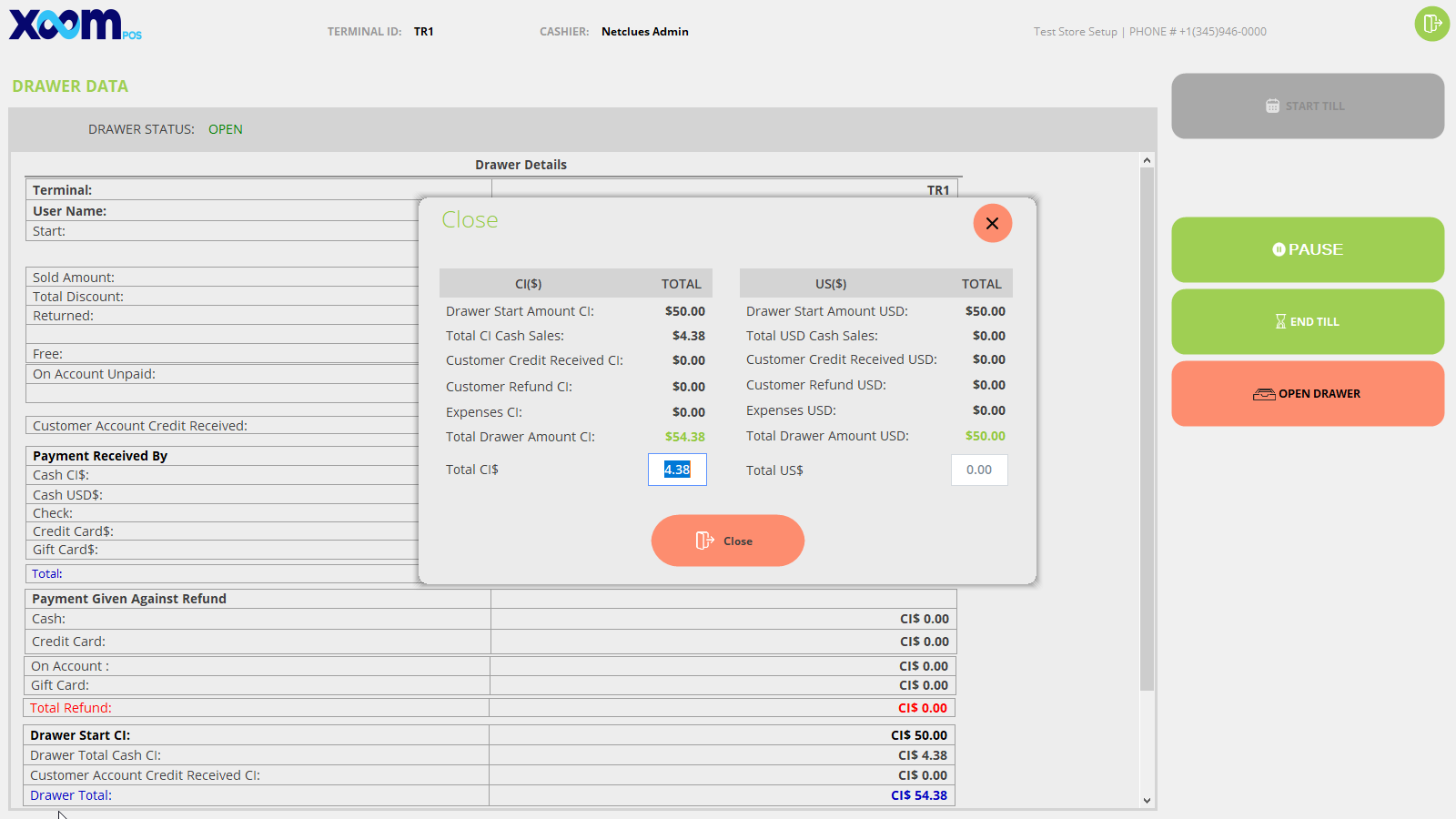
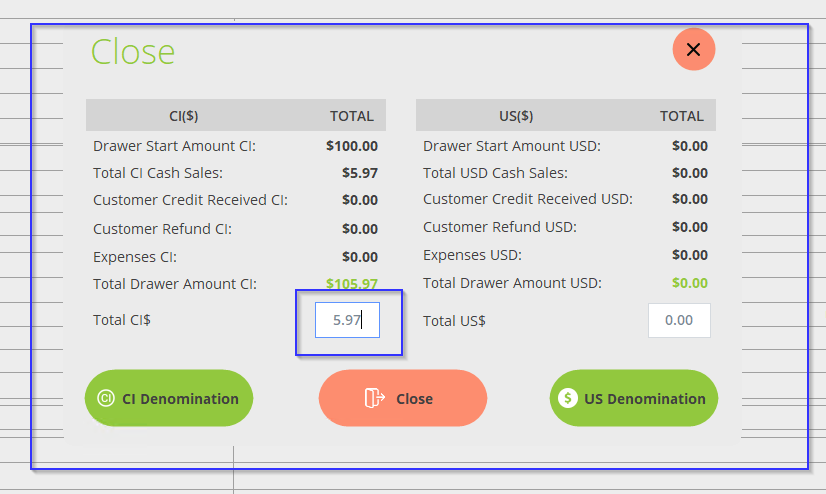
After voiding, all the open and hold orders, the drawer closing popup screen shows. Below is the screenshot for your reference:
On total CI$ and US$, the total sell amount is displayed.
By clicking on the ‘Close’ button the drawer is closed and the cashier is auto-logged out and redirected to the login screen.