Skip to the content
Window POS
FAQ
Window POS
FAQ
Search for:
License Activation
Home
License Activation
Search for:
The client got the license key from the vendor.
You got your license key in your email.
Without activation, you are not able to use the POS.
Also, a single key works on a single system.
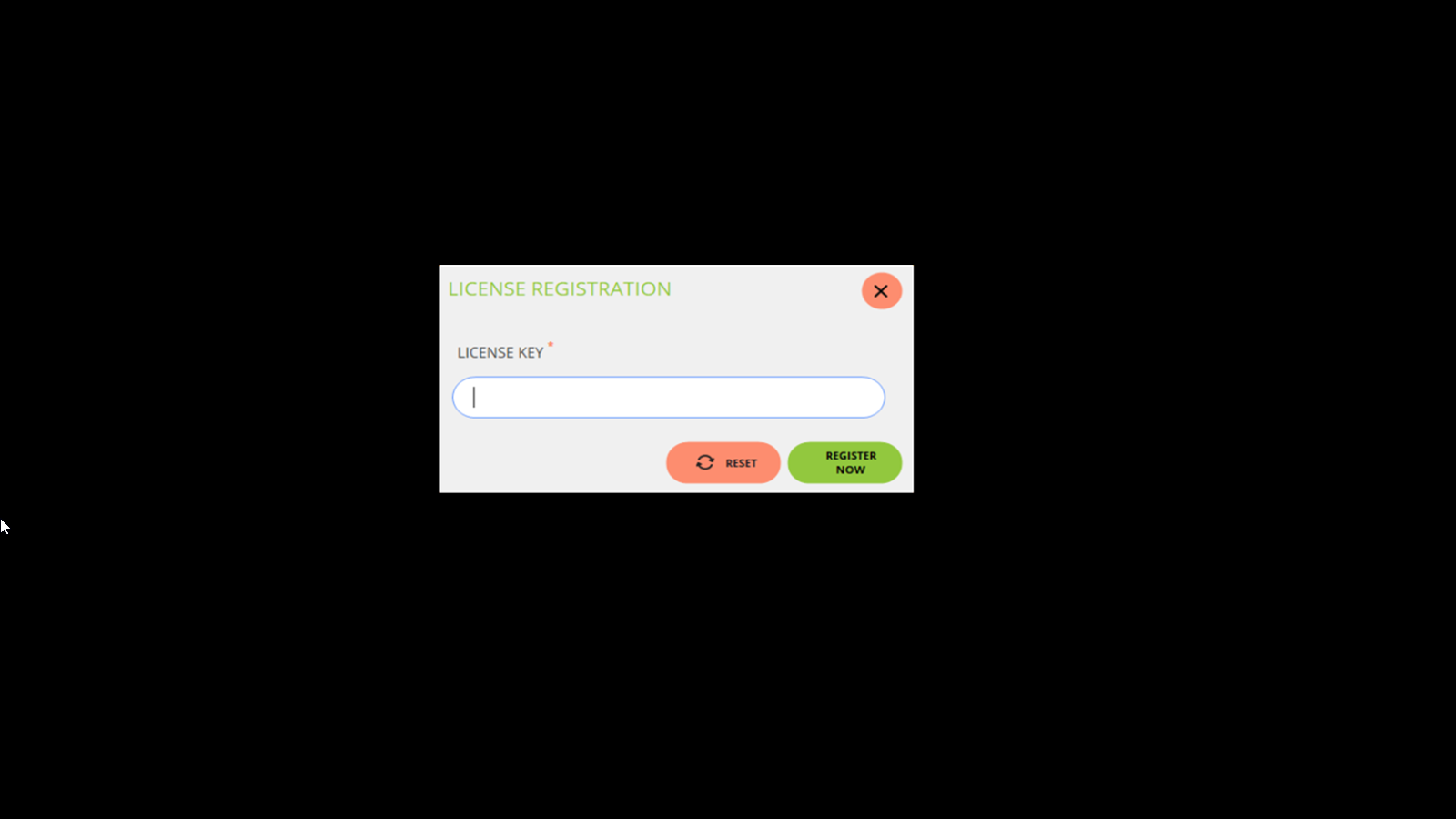
First of all, you have to open the Xoom POS and it will ask for the license key. Please refer below screenshot:
On the license key field, you have to enter the key which you got in your email.
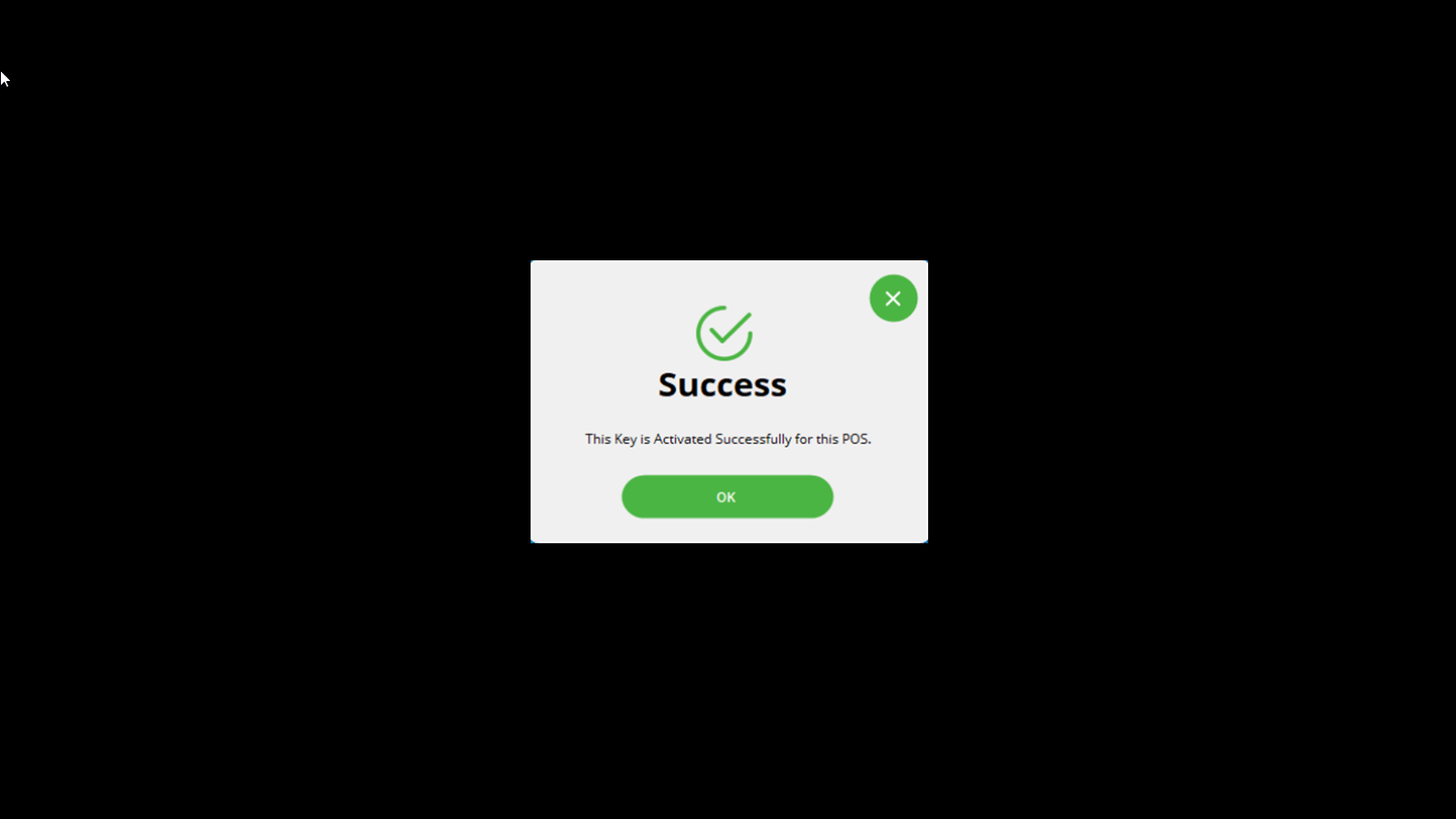
And then click on the ‘Register Now’ button so it will show a popup that the license key is activated successfully.
If you click on the ‘Reset’ button then the key gets cleared.
If you haven’t paid for the key then activation is not done.
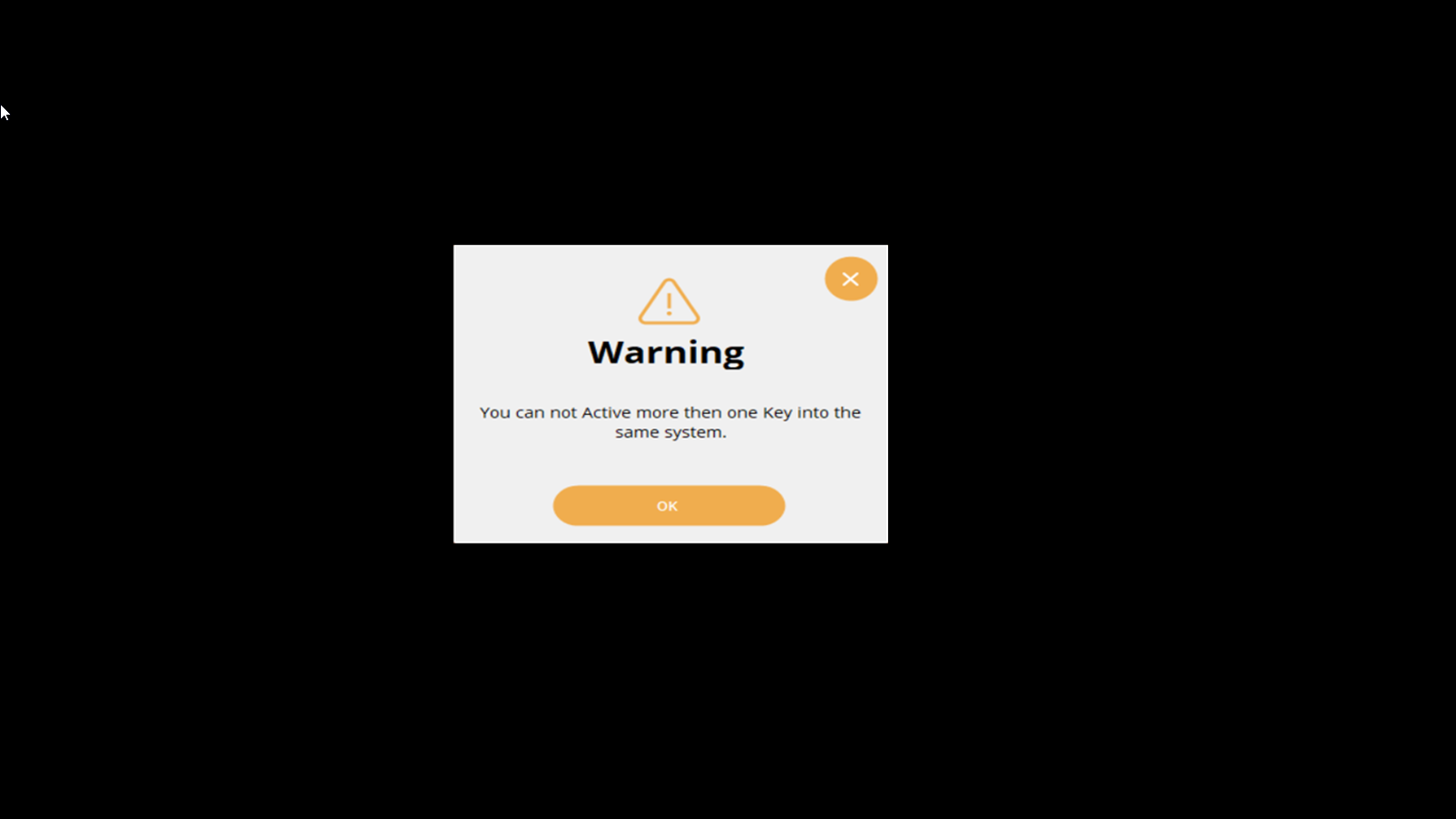
When you enter the key which is used on another POS then warning message shows, please refer the below screenshot:
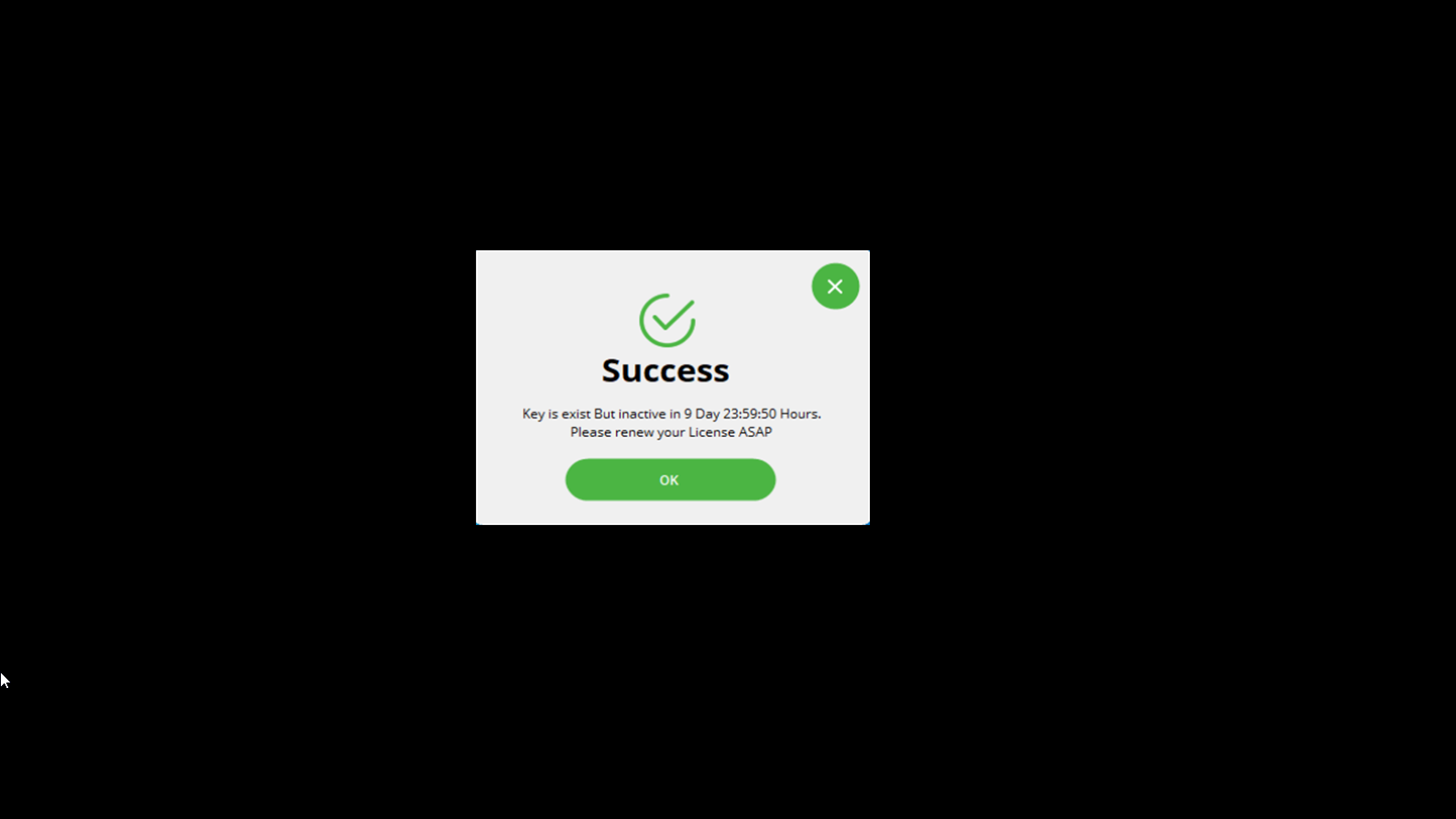
Additionally, a warning of expiry is displayed just before 10 days when the license key is going to expire, below is the screenshot for reference:
After entering the correct license key, your POS is getting started and below is the screenshot for reference: